Scratch for Kids: Sign Up and Start Creating!
Ready to create games, stories, and animations? Follow this easy guide with a parent to create your free Scratch account and start coding!
Step 1: Open Scratch
Scratch works in your web browser on Windows or Mac. No installation is needed.
Click Join Scratch at the top of the page.
Step 2: Choose a Username and Password
Your username is your public coding nickname!
- Choose a fun username, such as
DancingDino27orSpaceCatCoder. - Avoid using your real name, birthday, or school name.
- Create a password with help from a parent.
- Enter it again if asked, then click Next.
Keep your password private. Have a parent save your login details somewhere safe.
Step 3: Complete the Sign-Up Questions
Follow the questions on the screen. You may be asked for your:
- Country.
- Birth month and year.
- Gender.
Ask a parent to help you complete these steps.
Step 4: Enter a Parent’s Email Address
Use an email address that your parent or guardian checks regularly.
Check the spelling carefully, then follow the prompts to finish creating your account.
Step 5: Confirm Your Email
Ask your parent to:
- Open their email inbox.
- Find the confirmation email from Scratch.
- Click the confirmation link inside.
Can’t find it? Check the spam or junk folder.
Confirming your email enables project sharing.
Step 6: Practice Signing In
Before class, practice signing in with your new account.
👉 Click here to open Scratch and sign in
- Click Sign in.
- Enter your Scratch username and password.
- Click Sign in again.
Remember: Your Scratch login is separate from your First Coding Path login.
Step 7: Create Your First Project!
Once you are signed in, click Create at the top of the page.
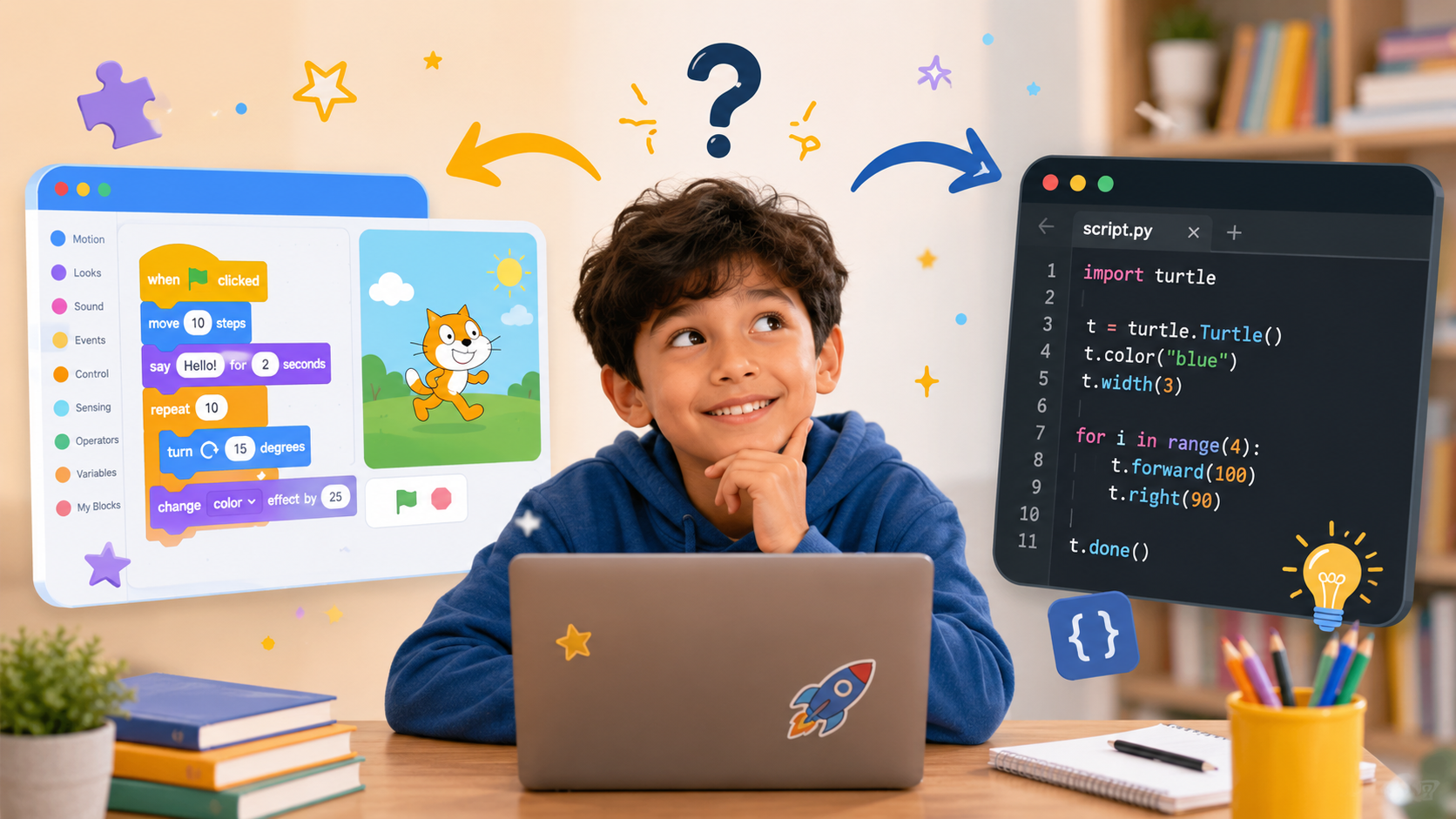
Try making the Scratch Cat talk:
- Click the yellow Events category.
- Drag when green flag clicked into the coding area.
- Click the purple Looks category.
- Drag say Hello! for 2 seconds underneath the first block until they snap together.
- Click the green flag above the stage.
🎉 Your cat just said hello!
Give your project a name at the top of the editor. Before closing, check that it has saved. You can find saved projects in My Stuff.
Ready for Class?
- Create your Scratch account.
- Confirm your email with a parent.
- Practice signing in.
- Make sure you can access your login details during class.
- Always sign in before working so your projects can save to your account.
Try a little challenge: Change “Hello!” to your own funny message!